
Steam
Valve CorporationEntertainment
3.236.76K Reviews
- Version
- 3.10.11
- Installs
- 100.00M
- Age Rating
- Teen
Screenshots
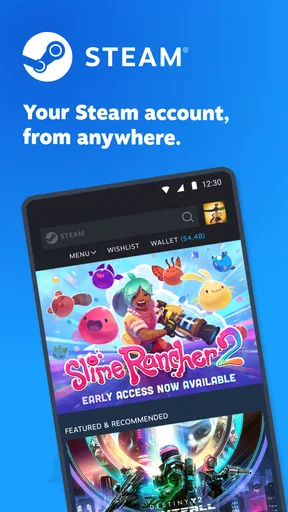
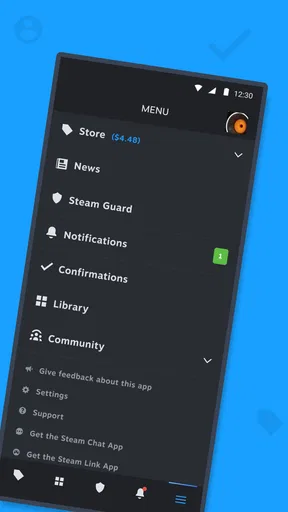
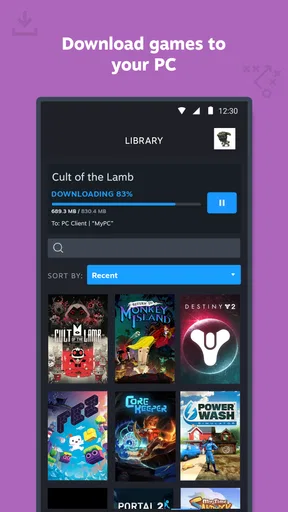
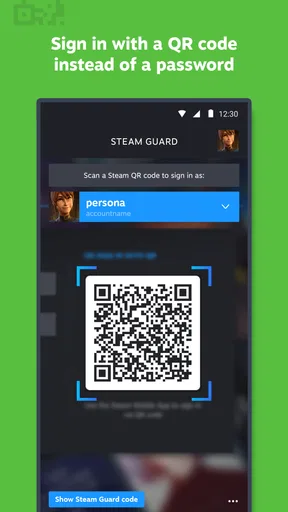

Our Review of Steam
 Analysis by Appyee
I reach for the Steam mobile app when I want to check in on my PC gaming life without sitting at my computer. It can be useful for browsing, keeping up with friends and handling account tasks, but it is not a replacement for the desktop client or a way to turn a phone into a full PC gaming setup. That distinction matters: I see it as a companion for people already using Steam, rather than a stand-alone destination for mobile games.
Valve Corporation’s entertainment app is free to install, so trying it does not require paying for the app itself. That free access should not be confused with free games: purchases in the Steam ecosystem are separate, and I would treat any game price as its own decision. For someone who already has a Steam account, the app’s value comes from convenience between play sessions, not from a promise that gaming costs nothing.
A companion for the moments away from your PC
The clearest use case is small, practical check-ins. If I’m away from my desk and a friend asks whether I’m free later, I can use the app to stay connected to my Steam social circle. If I spot a game I might want, I can look it up and keep it in mind without opening my computer. Those brief visits are where a mobile companion earns its place: it saves a trip to the desktop for tasks that do not require playing.
It also suits people who like to keep an eye on a gaming account throughout the day, but it is less compelling if you only want to launch and play games on a phone. Steam’s main appeal is tied to its broader PC ecosystem. If your gaming life is mostly on a console or in mobile games, the app may feel like an extra account window rather than an essential tool.
What free access does—and does not—mean
The app is free, and that makes it easy to try without weighing up an app purchase first. I appreciate that low barrier, especially for a service people may only need for occasional account or community checks. The value question comes down to whether those small conveniences fit your routine. If you rarely use Steam elsewhere, there may be little reason to keep another app on your phone.
Steam has a 3.1 average rating from around 1.1 million ratings, and it has been installed over 100 million times. I read those figures as a sign of a widely used app that does not satisfy everyone equally, rather than proof that it will fit every device or preference. It is rated Teen, and the current version is 3.10.9, with Android 8.0 as the minimum operating-system requirement.
Where Steam earns its place
I would put Steam in a different role from the usual entertainment apps built around watching videos or playing directly on a phone. It is a control point for a PC gaming account and its surrounding community. That makes it more useful to an existing Steam user than to someone simply browsing for a new mobile game store.
Useful habits that make the app more worthwhile
One practical approach is to use the phone for quick decisions and leave longer browsing for a larger screen. I might check a title while commuting, save it for later, then compare it properly at home before buying. That split helps avoid impulse purchases on a small display and makes the app useful even when I do not intend to play right away.
I also recommend treating notifications selectively. Alerts can help when you want to notice account activity or keep up with friends, but turning on every available notification can make a gaming companion feel noisy. I would start with only the reminders that solve a real problem for you, then adjust them after a few days rather than letting every alert compete for attention.
Account security is another reason a Steam user may want the mobile app close at hand. I would keep the phone and account protected with the security options Steam makes available, and avoid approving anything I do not recognize. The app is most useful when it reduces friction without encouraging rushed taps; if I am unsure about a prompt, I pause and check it rather than treating convenience as a reason to hurry.
Where another option may be better
If I want to play during a short break, a dedicated mobile game is the more direct choice: it is designed around touch controls and phone-sized sessions. If I want to manage a game library in detail, compare several titles side by side, or handle a long account task, I prefer the desktop client and a larger screen. The mobile app fills the gap between those situations, but it does not remove the advantages of either alternative.
It is also worth being realistic about the phone’s role. The app is not a substitute for a PC, and installing it does not make every Steam game playable on mobile. I would skip it if I do not use Steam on another device, or if I expect it to function as a general game launcher for titles outside that ecosystem. For a dedicated Steam user, though, occasional account and community access can justify the modest space and attention it takes.
My take for everyday use
A typical day might look like this: I notice a friend’s message while away from my computer, reply from the phone, and later check a game I had been considering. I leave the actual purchase decision and any serious comparison until I have time to review it properly. That is a sensible workflow because it uses mobile access for speed while avoiding the assumption that a small screen is ideal for every Steam task.
Steam has been available since January 26, 2012, and its long-running presence helps explain why many PC players already have a reason to use it. Still, familiarity is not the same as flawless convenience. The app’s average rating suggests a mixed experience, so I would keep expectations focused on the tasks I actually need and judge it on whether those work smoothly for me.
For people who want a simple way to stay connected to their Steam account away from a computer, I think it is worth trying because the app itself is free. For everyone else, especially someone looking for a standalone mobile gaming experience, I would pass and choose an option built for that purpose. Its value is real but specific: it is a handy companion when Steam is already part of your gaming routine.
Imagine having the world of gaming at your fingertips. That's exactly what the Steam app offers. If you're a gaming enthusiast like me, you've probably heard of Steam. It’s your one-stop shop for gaming content, community interactions, and much more. Let's dive into what makes this app a must-have for gamers everywhere.
Getting Started with Steam
First things first, let's talk about getting this bad boy onto your device. Installing the Steam app is as straightforward as it gets. Head over to the Google Play Store or the App Store, hit download, and you're on your way! The app itself is sleek and easy to navigate, which is a relief when all you want to do is jump into a game.
Exploring the Features
Once you’re in, the first thing you’ll notice is the extensive library. Steam boasts an impressive collection of games across all genres. Whether you’re into action, RPGs, or indie games, there’s something for everyone. The search functionality is robust, letting you filter by genre, popularity, or even user ratings. It’s like walking into a candy store for gamers.
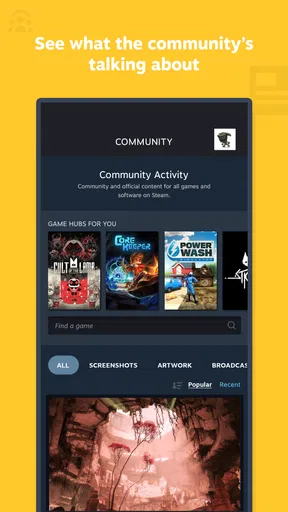
One feature that stands out is the community aspect. You’re not just downloading games; you’re joining a global community. You can connect with friends, join discussions, and even broadcast your gameplay. It’s a social hub where you can share your achievements and get recommendations based on your gaming habits.
Game Management and Updates
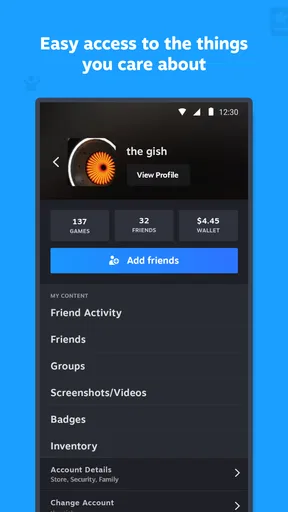
Managing your game library is a breeze. You can organize your games, keep track of what you’ve played, and even see your playtime stats. Steam also takes care of game updates automatically, so you’re always playing the latest version without any hassle.
And let’s not forget the cloud saves. This feature ensures that your progress is synced across devices, which is a lifesaver when you switch from your PC to your mobile. No more lost saves or starting over!
In-App Purchases and Sales
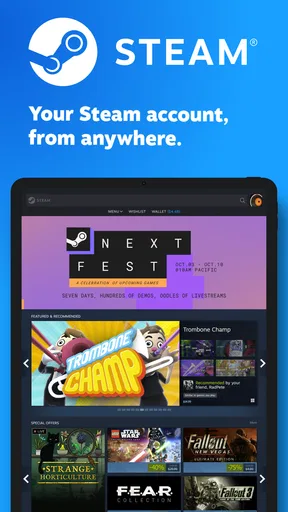
Steam is renowned for its sales, and the app doesn’t disappoint. You’ll find discounts and bundles all year round, making it easier on the wallet to expand your collection. The in-app purchase process is secure and straightforward, and you can even set up notifications for sales on your wishlist items.
And hey, if you’re someone who loves a good bargain, the seasonal sales are something to look forward to. Trust me, your library will thank you.
Why I Love It
What really makes the Steam app special is its versatility. It’s not just an app; it’s a gateway to a gaming universe. From the user-friendly interface to the constant updates and community interactions, it’s designed with gamers in mind. You feel like you’re part of something bigger, a community that shares your passion.
Another thing I appreciate is the attention to user feedback. The developers are constantly working to improve the app, and updates are frequent. If there’s a bug or a feature request, they’re on it. That kind of dedication is rare and makes a huge difference in the user experience.
Final Thoughts
In a nutshell, the Steam app is a powerhouse for gamers. It’s packed with features that cater to every type of gamer, from casual players to hardcore enthusiasts. Whether you’re looking to discover new games, connect with friends, or simply manage your library on the go, Steam has you covered.
So, if you haven’t already, give it a try. Dive into the world of gaming with Steam and see for yourself why it’s a favorite among gamers worldwide. Happy gaming!
Privacy and Permissions
See what permissions an app requests and how it handles your data.
- Calendar
- read calendar events plus confidential information, add or modify calendar events and send email to guests without owners' knowledge
- Location
- approximate location (network-based), precise location (GPS and network-based)
- Phone
- read phone status and identity
- Photos/Media/Files
- read the contents of your USB storage, modify or delete the contents of your USB storage
- Storage
- read the contents of your USB storage, modify or delete the contents of your USB storage
- Camera
- take pictures and videos
- Microphone
- record audio
- Wi-Fi connection information
- view Wi-Fi connections
- Device ID & call information
- read phone status and identity
- Other
- view network connections, pair with Bluetooth devices, access Bluetooth settings, full network access, change your audio settings, run at startup, control vibration, prevent device from sleeping, modify system settings
Verdict
Strengths of Steam
- Extensive library of games.
- Frequent sales and discounts.
- Robust community features.
- Cross-platform support.
- Easy refund policy.
Limitations of Steam
- Requires constant internet connection.
- Resource-intensive client.
- Occasional server issues.
- Large updates can be time-consuming.
- Limited parental controls.
Other Releases by Valve Corporation
View All
Steam Link
Entertainment3.3
Similar Picks in This Category
View All
Google Play Games
Google LLC3.9

Netflix
Netflix, Inc.4.8

YouTube Kids
Google LLC4.2

Disney+
Disney4.4

Prime Video
Amazon Mobile LLC4.7

PlayStation App
PlayStation Mobile Inc.3.5
Frequently Asked Questions
What is Steam and how does it work?
Steam is a digital distribution platform developed by Valve Corporation for purchasing and playing video games. It offers a vast library of games across multiple genres and serves as a community hub where players can connect, share content, and more. Users download the Steam client to their computer, purchase games, and play them directly from their library.
Is Steam free to use, and do I need to pay for an account?
Creating a Steam account is completely free, and there are no subscription fees. You only pay for the games you choose to purchase. Steam also offers free-to-play games and demos, allowing users to experience some content without any initial investment.
What platforms is Steam available on, and can I use it on mobile devices?
Steam is primarily available on Windows, macOS, and Linux operating systems. While there isn't a full version of Steam for mobile devices, there is the Steam Mobile App available on Android and iOS. This app allows users to chat with friends, browse the store, and manage game downloads remotely.
Can I play games offline with Steam?
Yes, Steam offers an offline mode that allows you to play your games without an internet connection. To enable offline mode, you need to have previously launched the game while online. This feature is convenient for gamers who may not always have access to a stable internet connection.
What are Steam sales, and how can I benefit from them?
Steam sales are periodic events where numerous games are offered at discounted prices. The most notable sales include the Summer Sale and Winter Sale, among others. These sales present an excellent opportunity for gamers to expand their library at a reduced cost. Keeping an eye on these events can lead to significant savings.
